Amore can automatically create DMG images during the release flow. When you release a new version of your app, Amore will package it into a DMG with a custom background and drag-to-install experience.
The DMG will be code signed and notarized as part of the release process, ensuring your users can install your app without security warnings.
If you drag and drop a DMG directly in Amore, it won't generate a DMG for you and will use your DMG instead.
During DMG creation, Amore will launch a Finder window to correctly set the background image and resize the window. This is normal. The Finder window will automatically be closed once Amore is done creating the DMG.
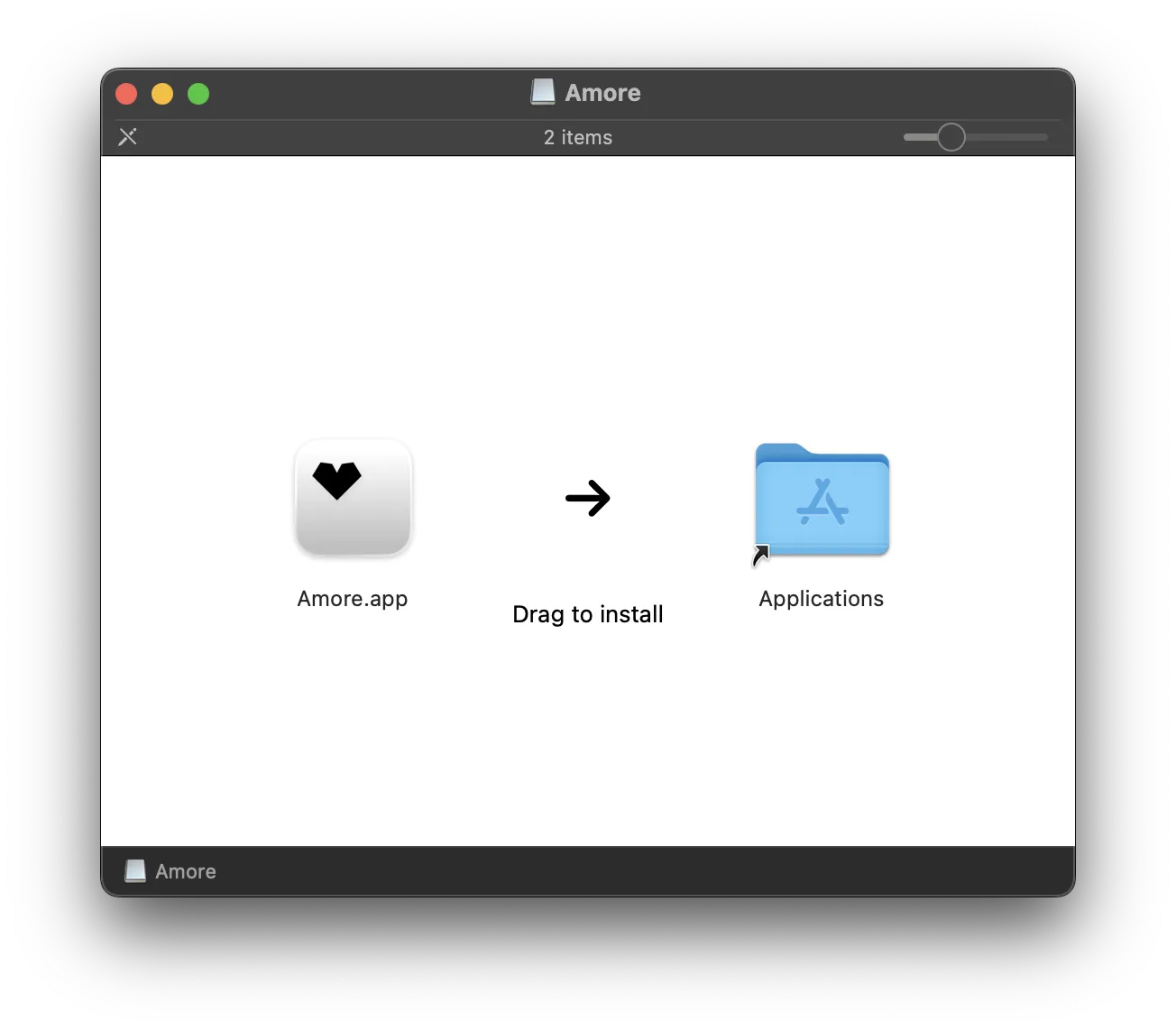
Video
Watch Amore build a signed, notarized DMG installer in about two minutes.
Requirements
To let Amore automatically create installer DMG images for your app, you need to set up a Codesign Identity and Notarization Keychain Profile in the Codesigning settings.
Setup
Once you setup a Codesign Identity and Notarization Keychain Profile in the Codesigning settings, you will be able to enable Create DMG Installer Image in the DMG Creation settings.
Troubleshooting
Make sure you disabled the Open folders in tabs instead of new windows in your Finder settings for better DMG results.
Watermark
The created DMG installer image will include a Built with amore.computer watermark for free users. If you want to remove it, you can disable the Show Watermark settings after you subscribe to Amore+.
Custom Background
With Amore+ you can replace the generated background with your own artwork. The DMG window is always 600 × 400 points, so your image only needs to match that canvas:
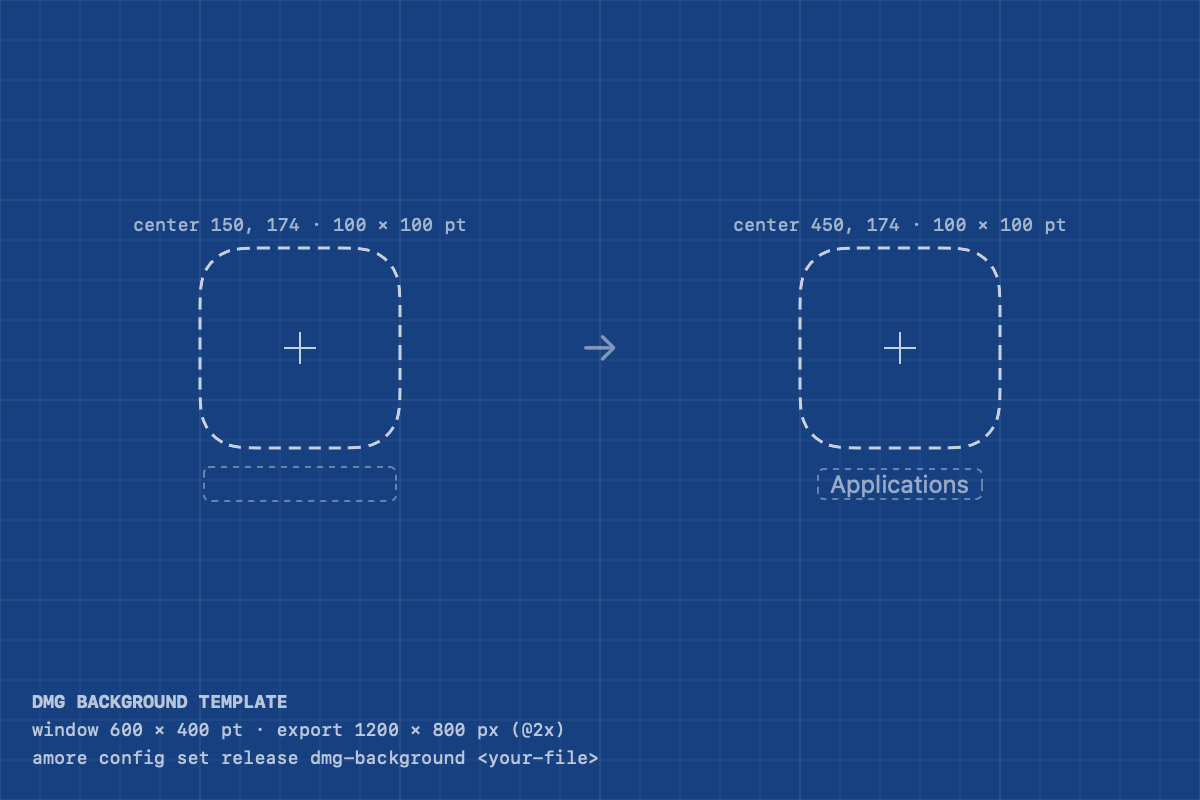
- Download the template and open it in your design tool. The dashed boxes mark exactly where Finder places your app icon, the
Applicationsfolder, and their labels. - Design over it and export at
1200 × 800pixels for a sharp result on Retina displays. PNG, JPG, and TIFF all work. Amore takes care of the DPI metadata for you, so a plain1200 × 800export at 72 DPI renders correctly. - Configure the exported image for your app:
amore config set release dmg-background background.png -b com.example.AppEvery following release will use your background, in the app and with amore release. For a single release, pass --dmg-background <path> to amore release or --background <path> to amore create-dmg instead. To return to the generated background, clear the setting:
amore config set release dmg-background "" -b com.example.AppImages with a different aspect ratio or smaller than 600 × 400 pixels are rejected before the release starts, so you can't accidentally ship a stretched, cropped, or blurry background.
Video
Design a custom DMG background from the template and configure it in Amore.