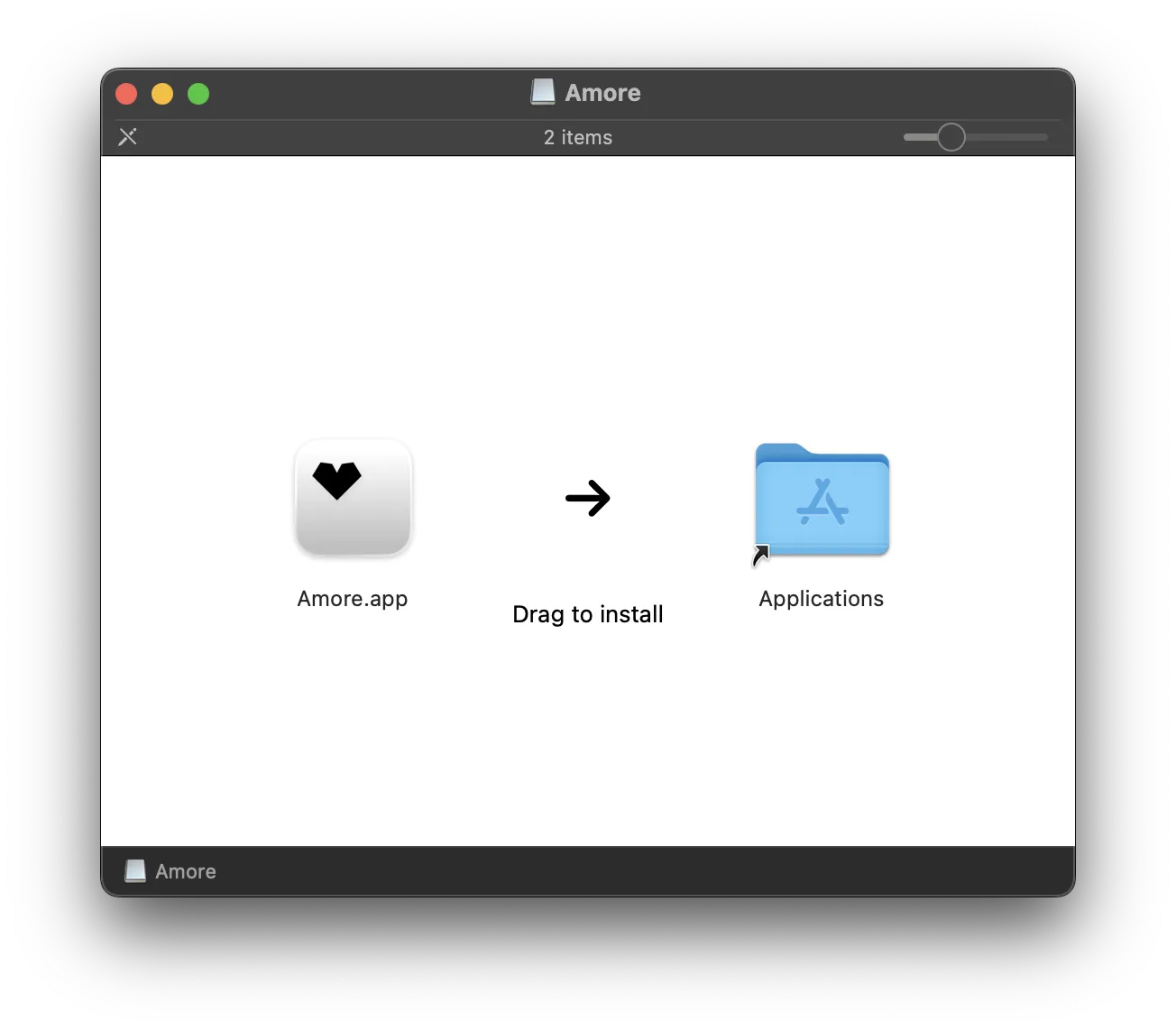
Amore can automatically create DMG images during the release flow. When you release a new version of your app, Amore will package it into a DMG with a custom background and drag-to-install experience.
The DMG will be code signed and notarized as part of the release process, ensuring your users can install your app without security warnings.
If you drag and drop a DMG directly in Amore, it won't generate a DMG for you and will use your DMG instead.
During DMG creation, Amore will launch a Finder window to correctly set the background image and resize the window. This is normal. The Finder window will automatically be closed once Amore is done creating the DMG.
Requirements
To let Amore automatically create installer DMG images for your app, you need to set up a Codesign Identity and Notarization Keychain Profile in the Codesigning settings.
Setup
Once you setup a Codesign Identity and Notarization Keychain Profile in the Codesigning settings, you will be able to enable Create DMG Installer Image in the DMG Creation settings.
Troubleshooting
Make sure you disabled the Open folders in tabs instead of new windows in your Finder settings for better DMG results.
Watermark
The created DMG installer image will include a Built with amore.computer watermark for free users. If you want to remove it, you can disable the Show Watermark settings after you subscribe to Amore+.
Configuration
Currently there are no options to configure the appearance of the created DMG, but that's something planned for the future.